During a Call
How to read and drive the Commit in-call UI
Commit sits alongside your call and gives you two kinds of help:
- On-script: the Discovery panel walks you through SPIN-style discovery by persona
- Off-script: the Product Insights panel answers anything that comes up mid-call
Starting Commit
Commit doesn't launch automatically with Zoom, Teams, or Google Meet. Open it manually before a call, or wait for the reminder notification when a call starts. Click the record button in the top bar to begin.
Commit works with Zoom and Microsoft Teams. Google Meet support depends on your plan.
Anatomy of the in-call window
Once a call is running, the Commit window splits into two main areas:
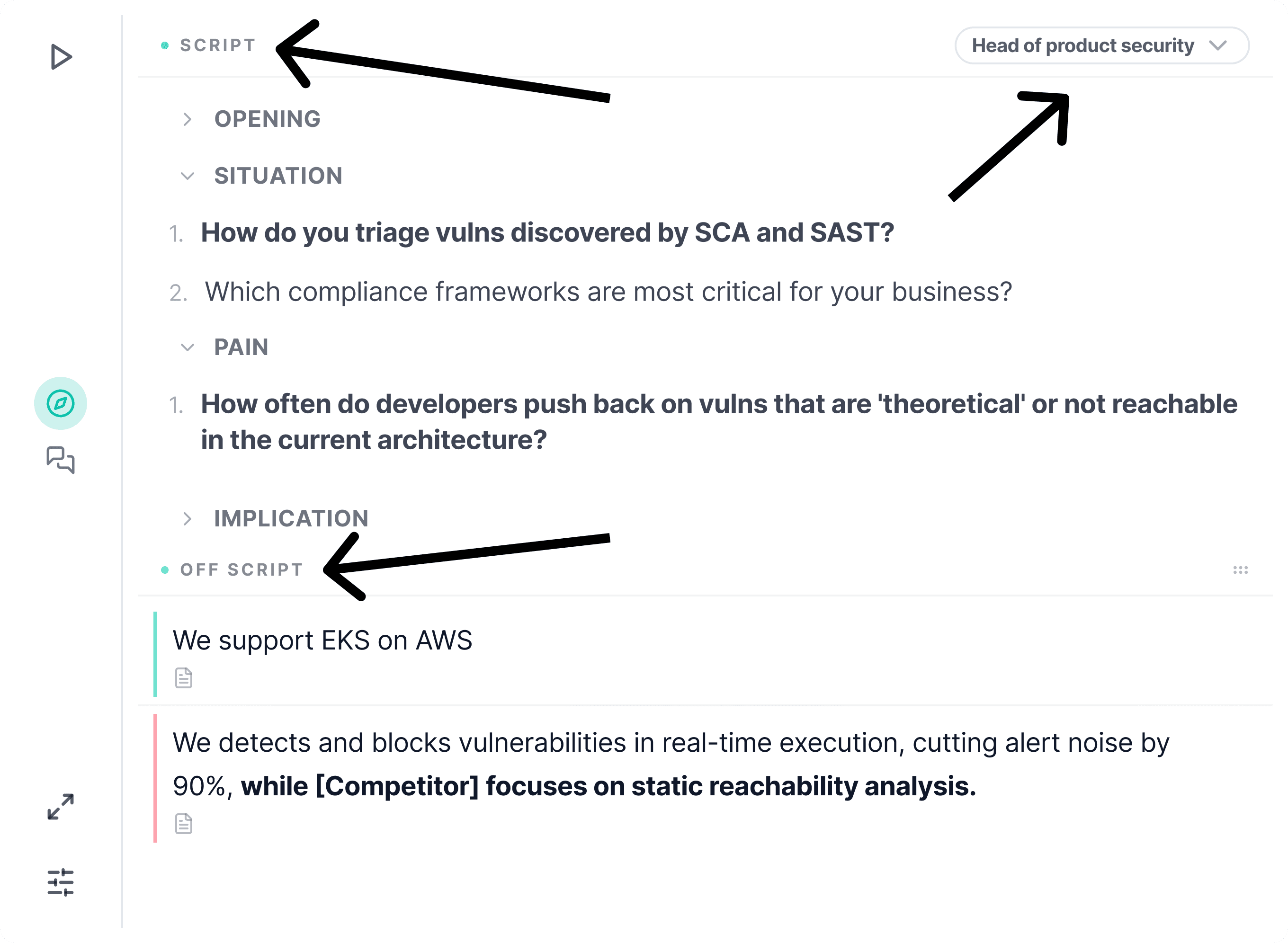
- Top bar: Start/Stop, current persona, phase controls
- Discovery panel: on-script questions for the current phase
- Product Insights: off-script answers (objections, competition, product Q&A)
Drag the bottom-right corner to resize the window.
The Discovery panel (on-script)
The Discovery panel is where your planned questions live. Commit organizes them by persona and phase, using the SPIN framework (Situation → Problem → Implication → Need-payoff), with a Closing phase at the end.
Persona
At the top of the Discovery panel, Commit shows the persona it detected for the prospect, for example CFO / Finance, CISO / Security, or VP Sales.
Commit auto-detects the persona from the conversation, but you can override it at any time. Two cases where this matters:
- Multi-stakeholder calls: if a CISO and a CFO are on the same call, switch personas when the conversation shifts
- Detection miss: if Commit picks the wrong persona from the intro, click and pick the right one
Click the persona to open the picker.
Phases
Discovery moves through phases. You start in Situation, then progress to Pain, Implication, Need-payoff, and Closing. Each phase has its own questions tailored to the current persona.
To move between phases, scroll down in the Discovery panel and click Start on the phase you want. Commit also suggests moving forward automatically based on the conversation.
Closing is manual today
Commit doesn't auto-detect when you've reached the end of a call. When you're ready to wrap up, scroll to Closing and start that phase manually. Pre-call and closing automation is on the roadmap.
Follow-up questions
As the prospect answers, Commit generates AI follow-up questions below the main question, so you can dig deeper without preparing every branch ahead of time.
Move question
If the current question isn't landing, click Move question and Commit picks a new one for the current phase and persona.
The Product Insights panel (off-script)
Everything unplanned happens here. When a prospect asks a product question, brings up a competitor, or raises an objection, Commit detects it from the transcript and drops an answer into Product Insights in real time.
Product Insights handles:
- Product questions: "How does Commit integrate with SAP?"
- Objection handling: "We already have a tool for this"
- Competitor positioning: "How are you different from Gong?"
- Proof points and case studies: surfaces relevant customer stories
Every answer is traceable to a source
Commit never hallucinates in a vacuum. Every answer in Product Insights is grounded in a specific document from your library, and the link to that source sits right next to the answer so you can open it mid-call if the prospect wants more detail.
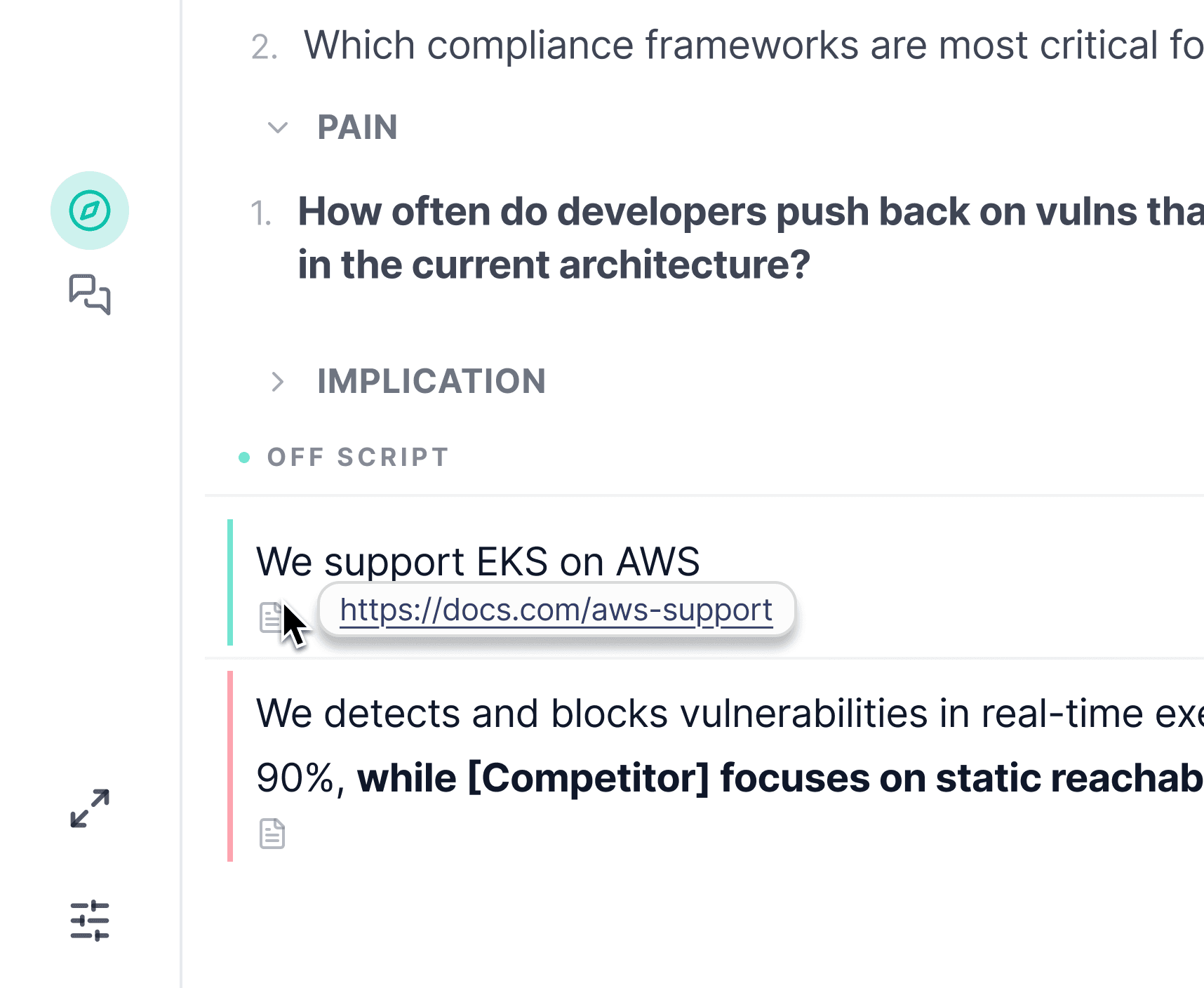
Click the document to open it in a new tab without leaving the call. If an answer doesn't feel right, the source link lets you fact-check in one click.
Commit knows your product
Product Insights is powered by the content your team has connected: product docs, battlecards, case studies, decks. The more you feed it, the sharper the answers. See Integrations for supported sources.
Resizing and moving
Commit is a floating desktop window. You can:
- Resize: drag the bottom-right corner
- Move: drag from the top bar
- Hide from screen share: see Hide from Screen if you can't do a dual-monitor setup
Stopping a call
When the call ends, click Stop in the top bar. Commit will ask you to rate the call (optional, helps us tune the model) and then take you to the post-call screen.
Next step
After the call is where a lot of Commit's value shows up. See After a Call for the post-call summary, MEDDPICC qualification, and follow-up email draft.
Need help? Contact us at support@askcommit.com.